**Problem:** Personnel costs have been entered in the "Personnel costs" table. However, these costs do not appear in the "Cost Overview" table.
The table "Cost Overview" provides an overview of planned costs per cost category and institution. To do that, the system must be able to attribute the costs to the institutions which participate. This information comes from the Profiles of the key researchers once the data has been imported into the Role of the key researchers. ##### How to resolve the issue? 1. Complete the information required in the Profile, in particular enter your "Primary affiliation" 2. Go to "My Proposals and Roles" (Top menu) and then click on **Principal Investigator and Coordinator** or **Co-Principal Investigator** on the page (text in red as the Profile is not completed) 3. Click on the green button (Refresh from Profile) [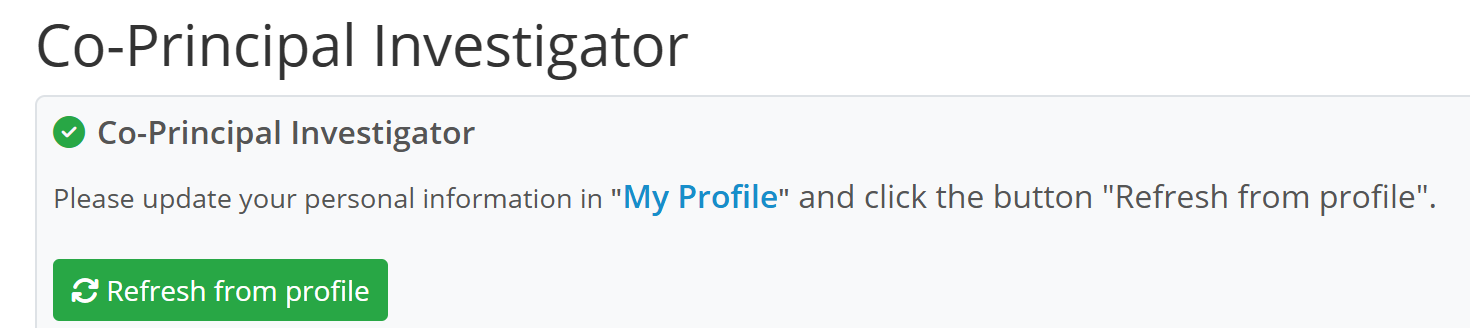](https://wiki.wwtf.at/uploads/images/gallery/2025-11/21fhn8TISVt4jEGy-image.png) *The system then imports the data of your Profile into the proposal and thus is able to attribute the costs to the institution. Costs should then be displayed correctly in the "Cost Overview" table.* # What is ""Role" & "Profile" and how to I get to my "Role" (as PI or Co-PI)? ##### What is "Role" compared to the information in my "Profile"? In my Profile, you manage your account information and data that is independent of the proposal. Imagine, you aim to submit two proposals in two different calls or two proposals in one call. The information is the same for both proposals and thus you don't need to enter it twice in each of the proposals. The information required in **"Role" is specific to the proposal.** Information required and entered here does not affect the information in "Profile" nor does it impact any other proposal you have created. ##### How do I get to the "Role" page? 1. Go to "MY PROFILE" in the Top Menu. 2. On the page that opens, click on ... [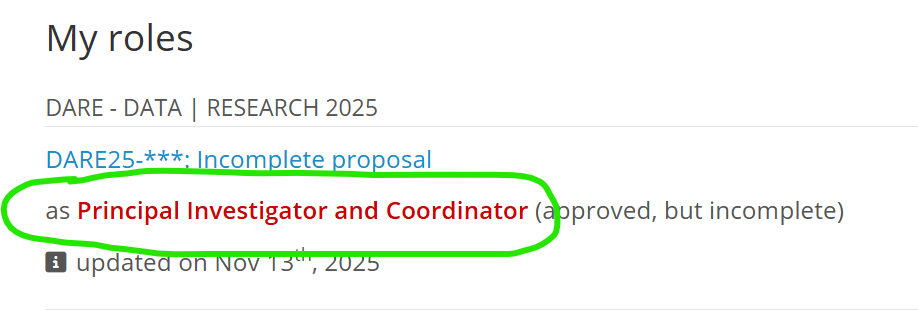](https://wiki.wwtf.at/uploads/images/gallery/2025-11/vssUzupFbVn4wLkG-image.png) 3. On the "Role" page, fill out all the required information (all checkmarks need to be green)You need to complete this page before filling out the other chapters of the proposal, in particular the "Costs" chapter. In the Costs chapter, any cost line must be attributed to an institution which the system only knows when the "Role" page is completed.
Please note that texts on the "Role" page such as scientific expertise etc. can be changed later on at any time.
##### How do I get data from "My Profile" into my "Role"? In order to fetch data from the Profile into "Role", you have to click on when you are in the "Role" window. [](https://wiki.wwtf.at/uploads/images/gallery/2025-11/ZSgD8Pjpi5gA99Wc-image.png) Then, the info in the "Role" is updated with the current information in the "Profile". # How can I update my CV?Problem: I want to update my CV!
1. Go to MY PROFILE, delete the existing CV and upload the new one. 2. Go to ROLE (how to get there, see [What is ""Role" & "Profile" and how to I get to my "Role" (as PI or Co-PI)?](https://wiki.wwtf.at/books/user-guide-funding-portal-rl4/page/what-is-role-profile-and-how-to-i-get-to-my-role-as-pi-or-co-pi "What is ""Role" & "Profile" and how to I get to my "Role" (as PI or Co-PI)?") 3. Click "Refresh from Profile" (green button) *As a result, the new CV is loaded into your proposal.* # I want to submit two different proposals in a call and need two different CVs Here is the answer to this question: [https://wiki.wwtf.at/books/user-guide-funding-portal-rl4/page/cvs](https://wiki.wwtf.at/books/user-guide-funding-portal-rl4/page/cvs) # My institution/affiliation is not suggested by the system On various instances, the system requires that an affiliation is typed in:**Problem:** I want to type in my affiliation but it is not recommend by the system. How can I add it anyway?
**Solution:** - Type in the institution in the field "Search Institution". Continue typing even if other institutions are suggested. - As soon as the are enough characters that the information is unique (aka no match with the database), the following lines appear below the field: *"Not found? Please click here to enter your affiliation manually"!* - Click on *"Not found? Please click here to enter your affiliation manually"!* **Result:** The typed in affiliation will appear right next in the field "Affiliation". **Notes:** - You can delete the affiliation at any time in the "affiliation" field and start the process again - Please note that if you are the first to type in the field, it will be suggested to all following users. Therefore make sure that you use the official designation of your affiliation (in English, if available).